Skip to content
Skip to product information

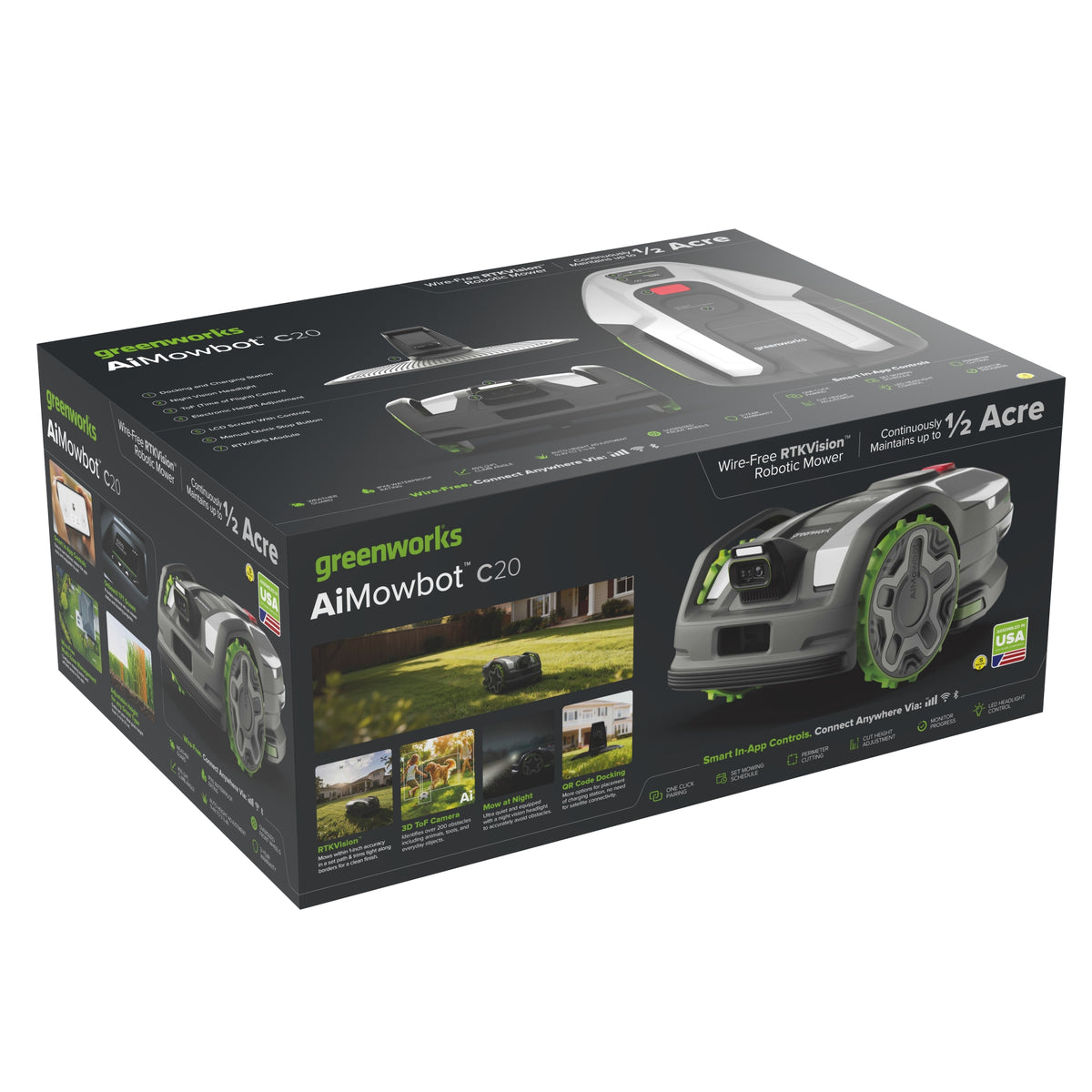
AiMowbot Wire-Free RTKVision Robotic Mower C20

SKU RMG200R00 | MODEL# RMG200R
Sale price
$ 999 .99

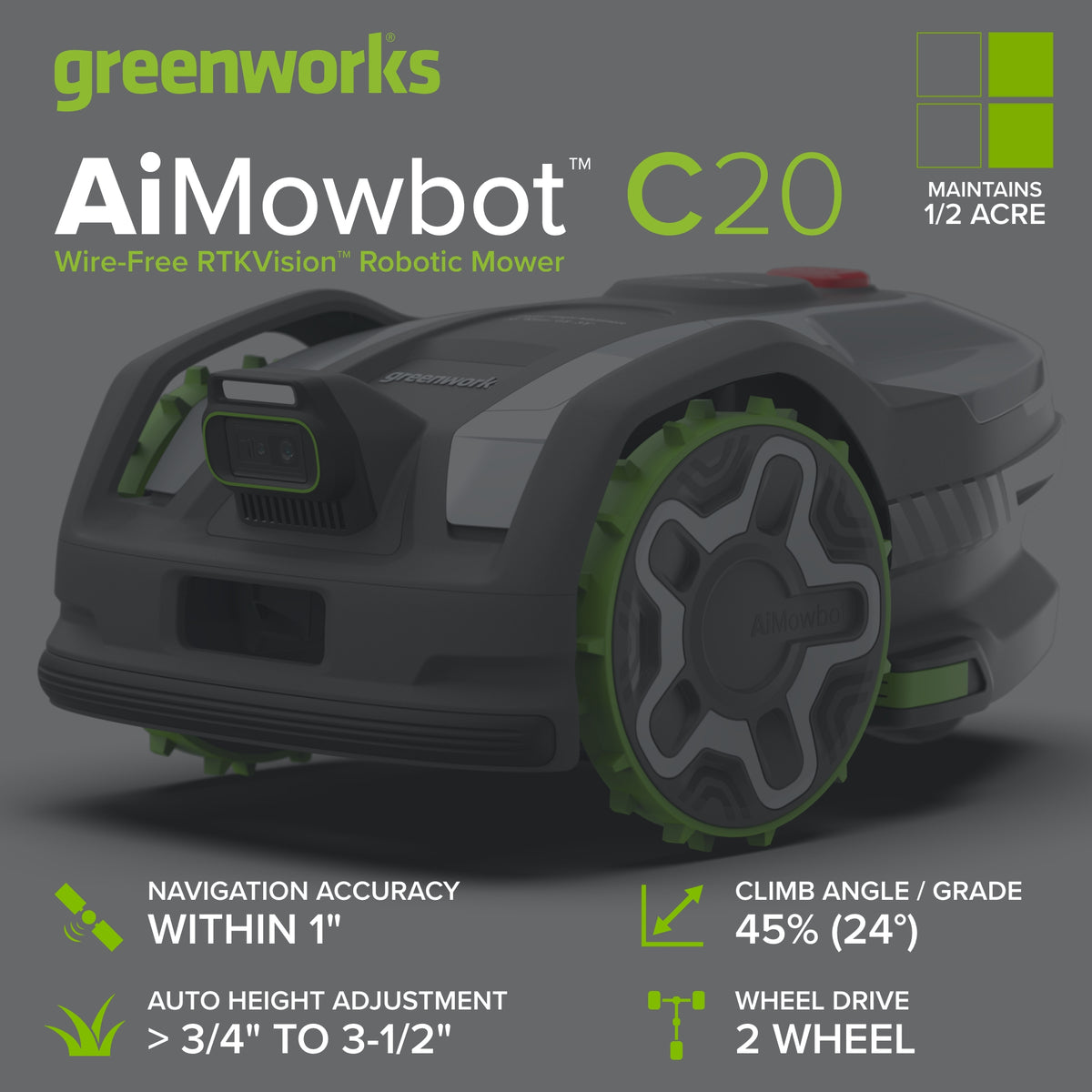
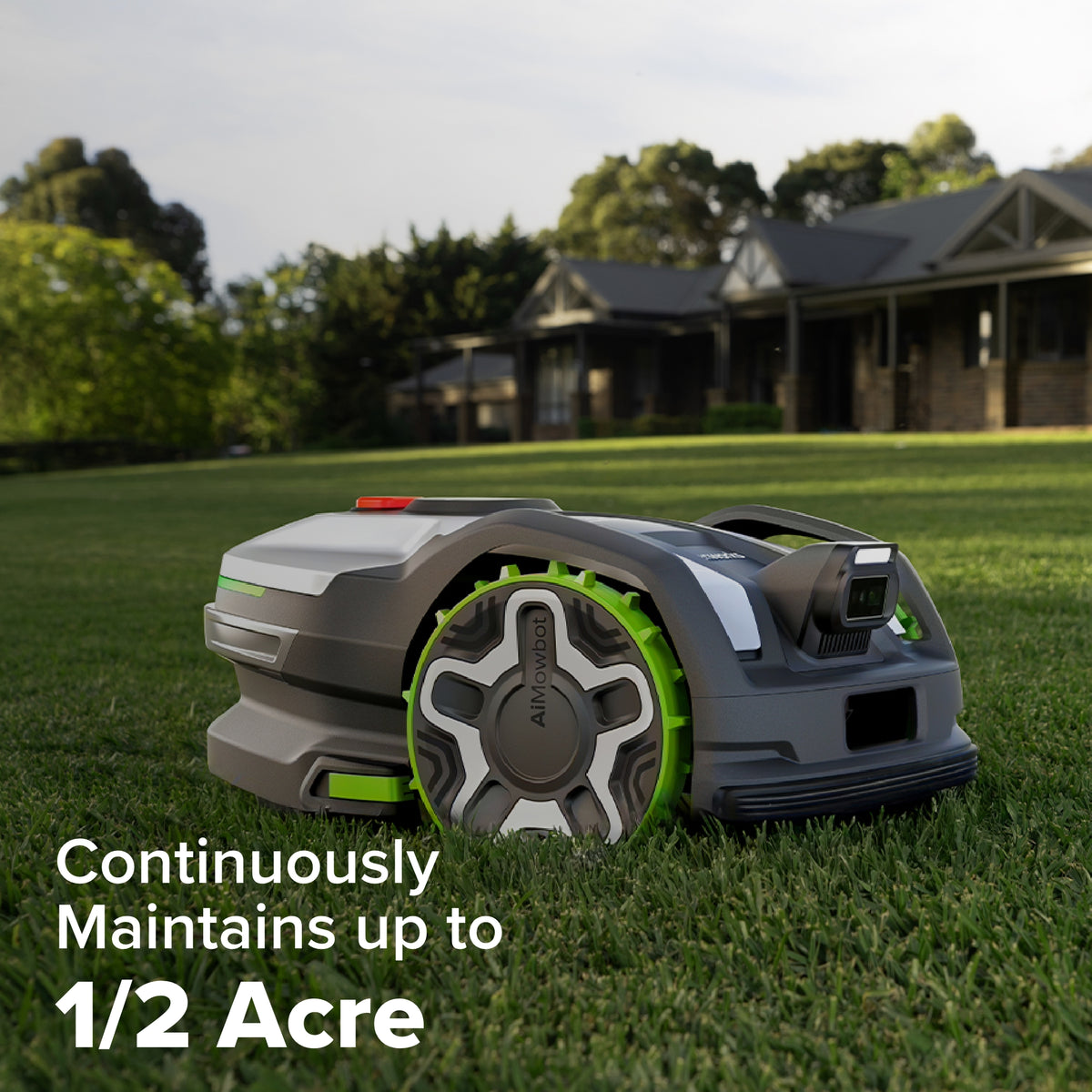
  • Mow Larger Yards: Keeps small or medium yards, up to 1/2 acre, neatly trimmed.
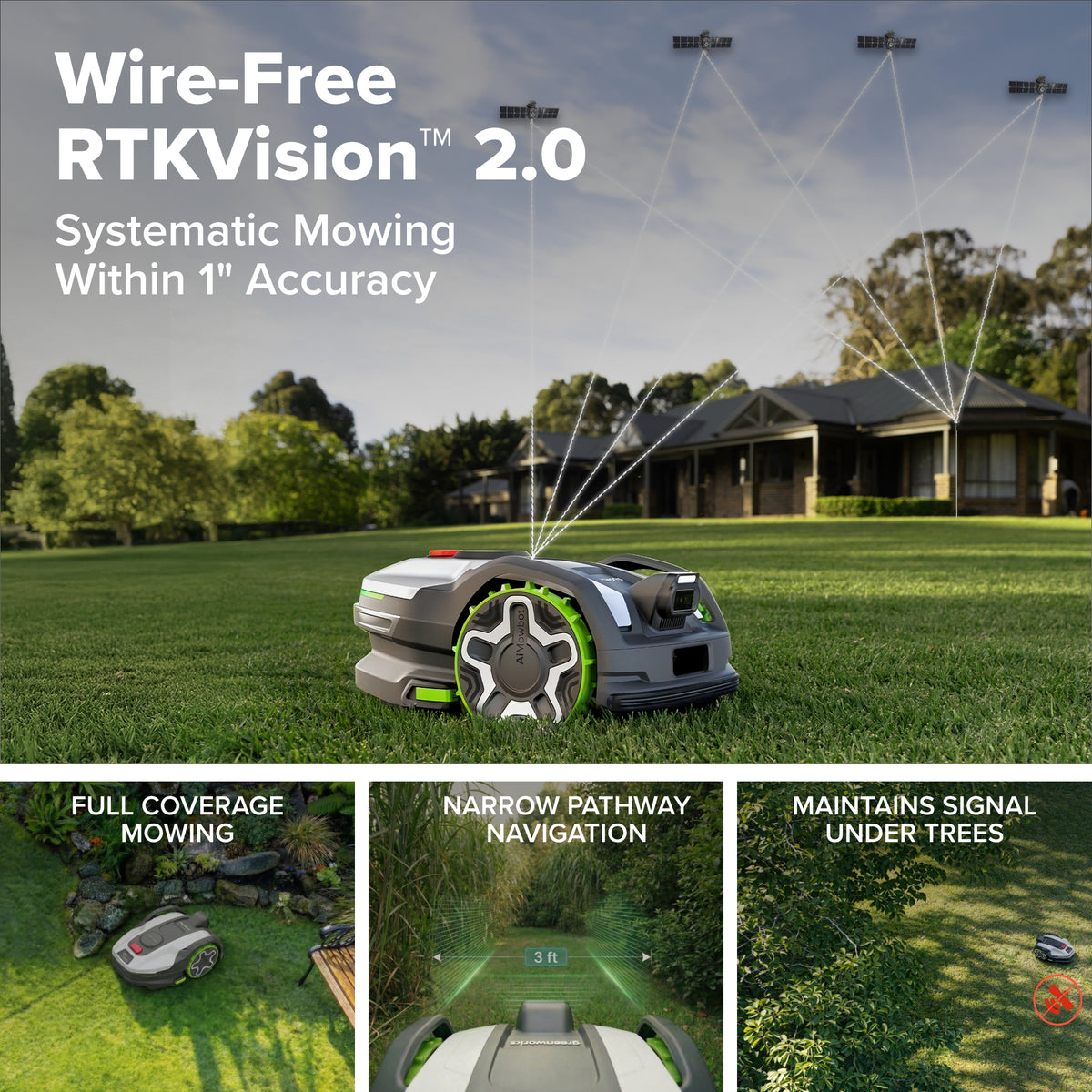
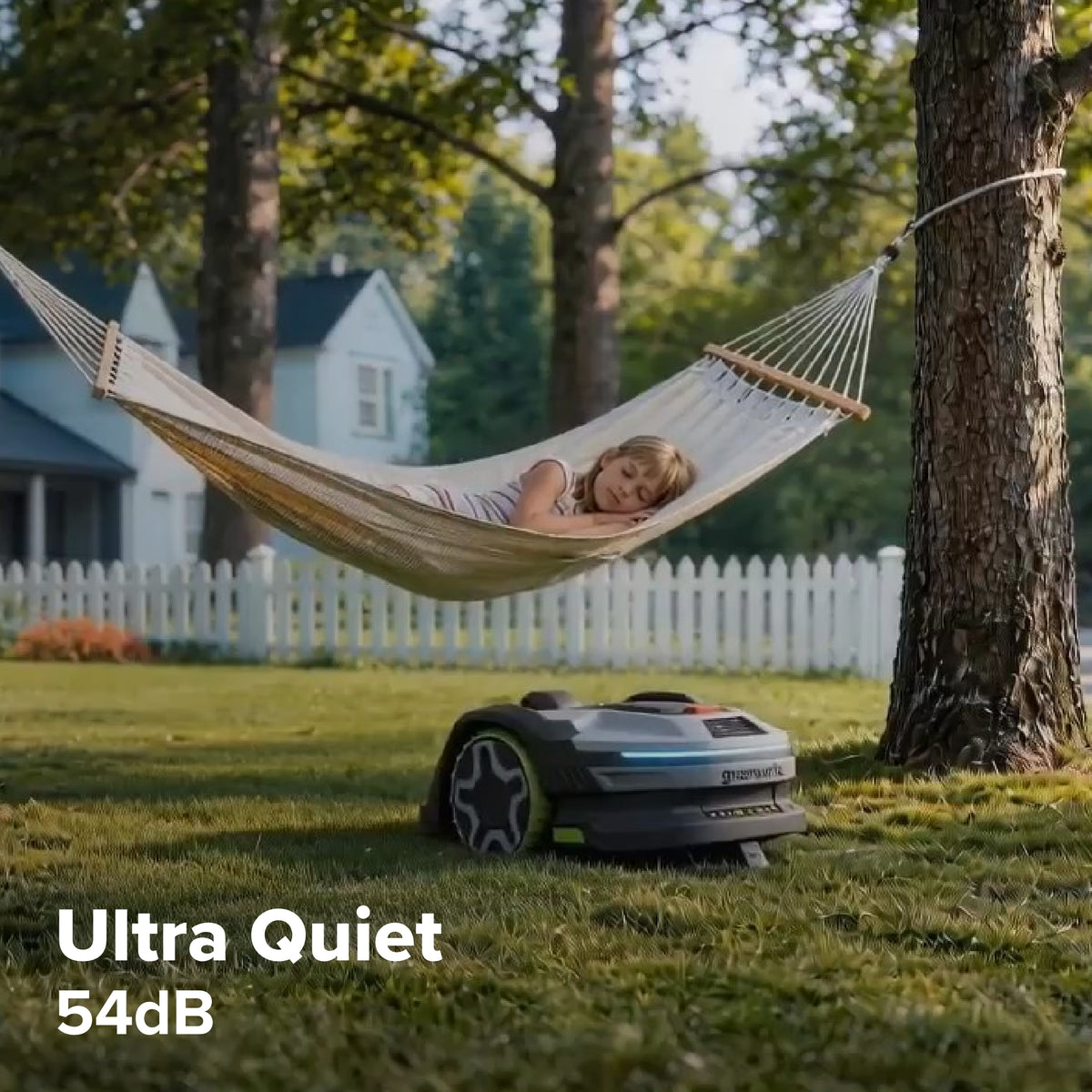
    It uses 1-inch navigation accuracy and runs quietly at 54 dB
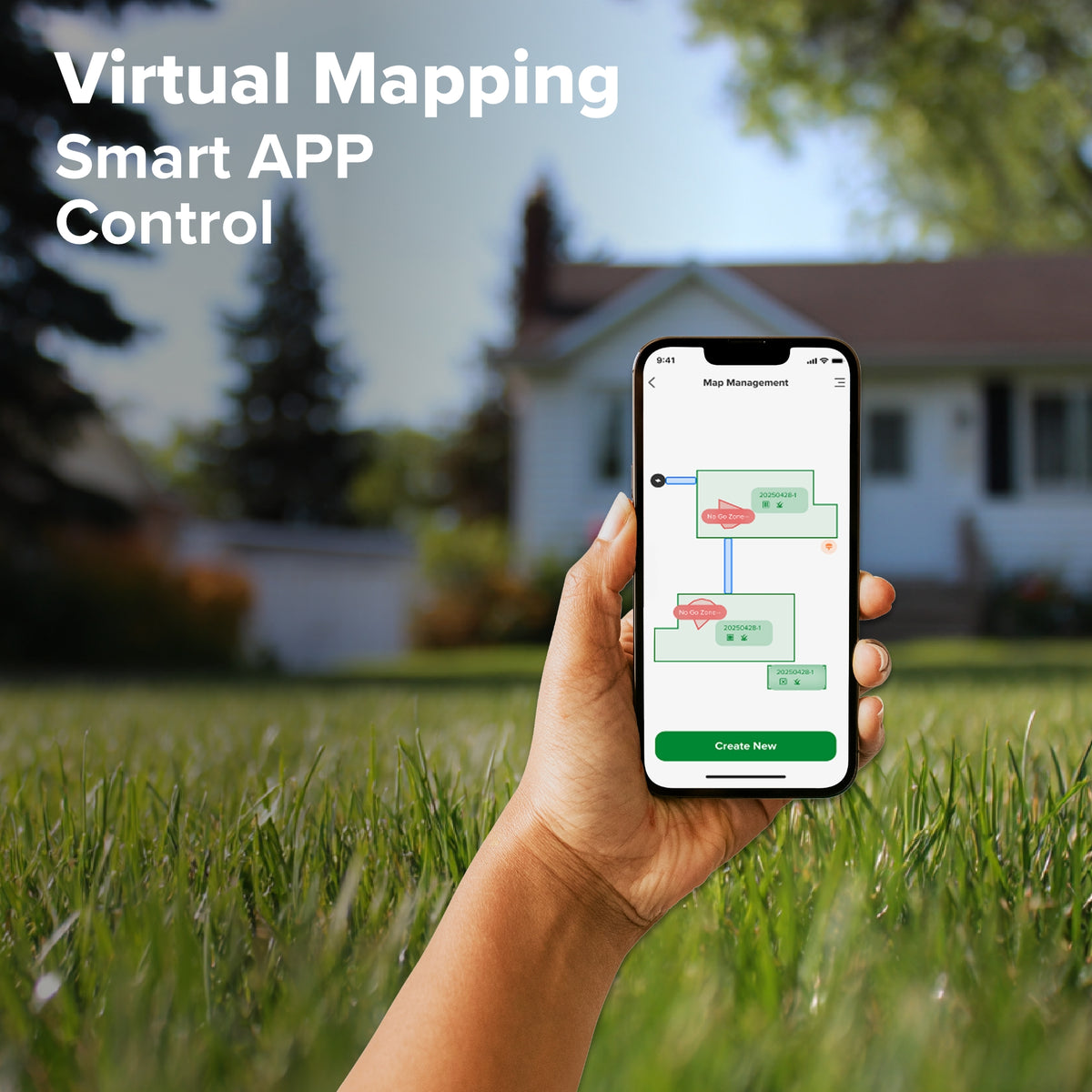
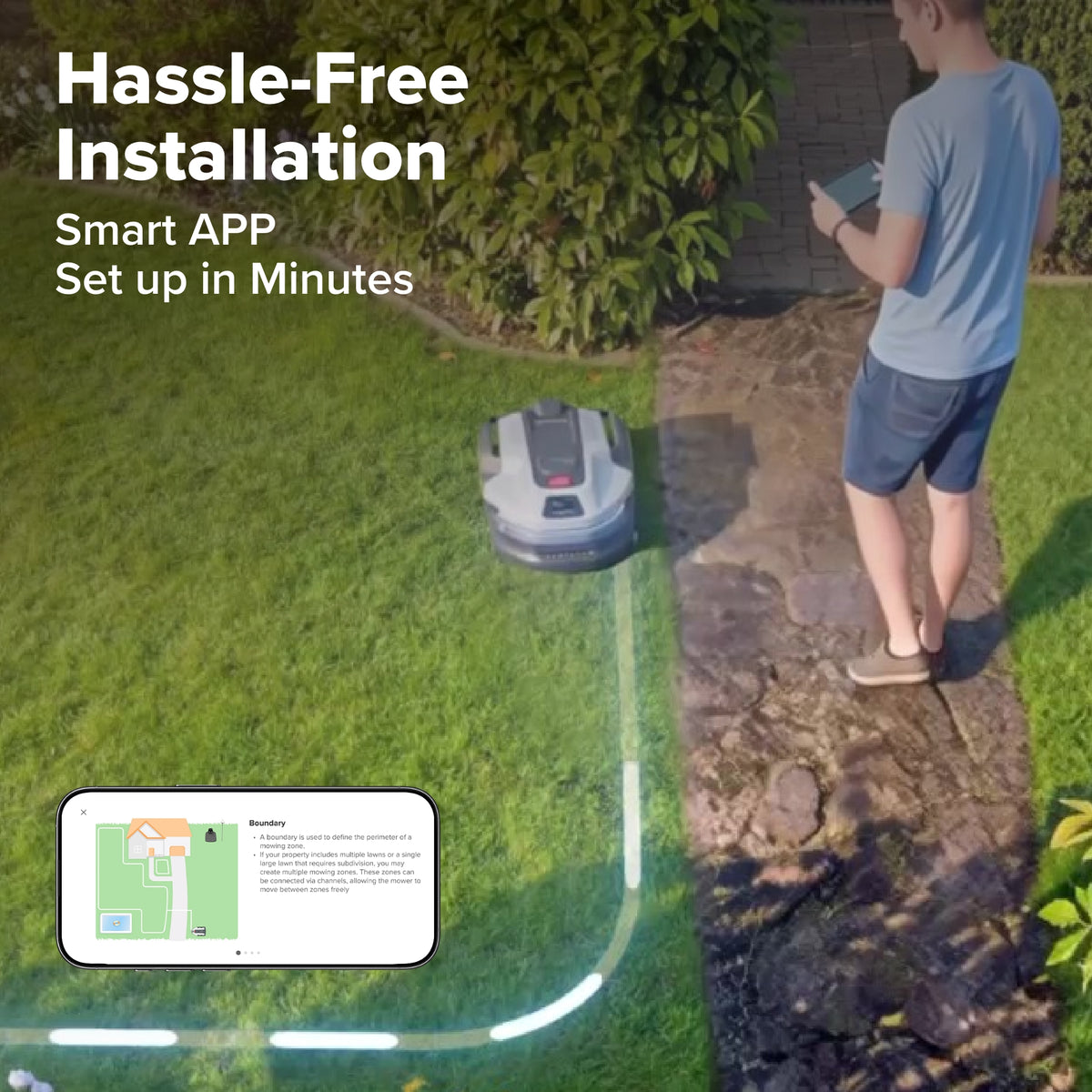
  • Easy Guided Setup: Configure mowing zones, pathways, no‑go areas, and settings through your smartphone
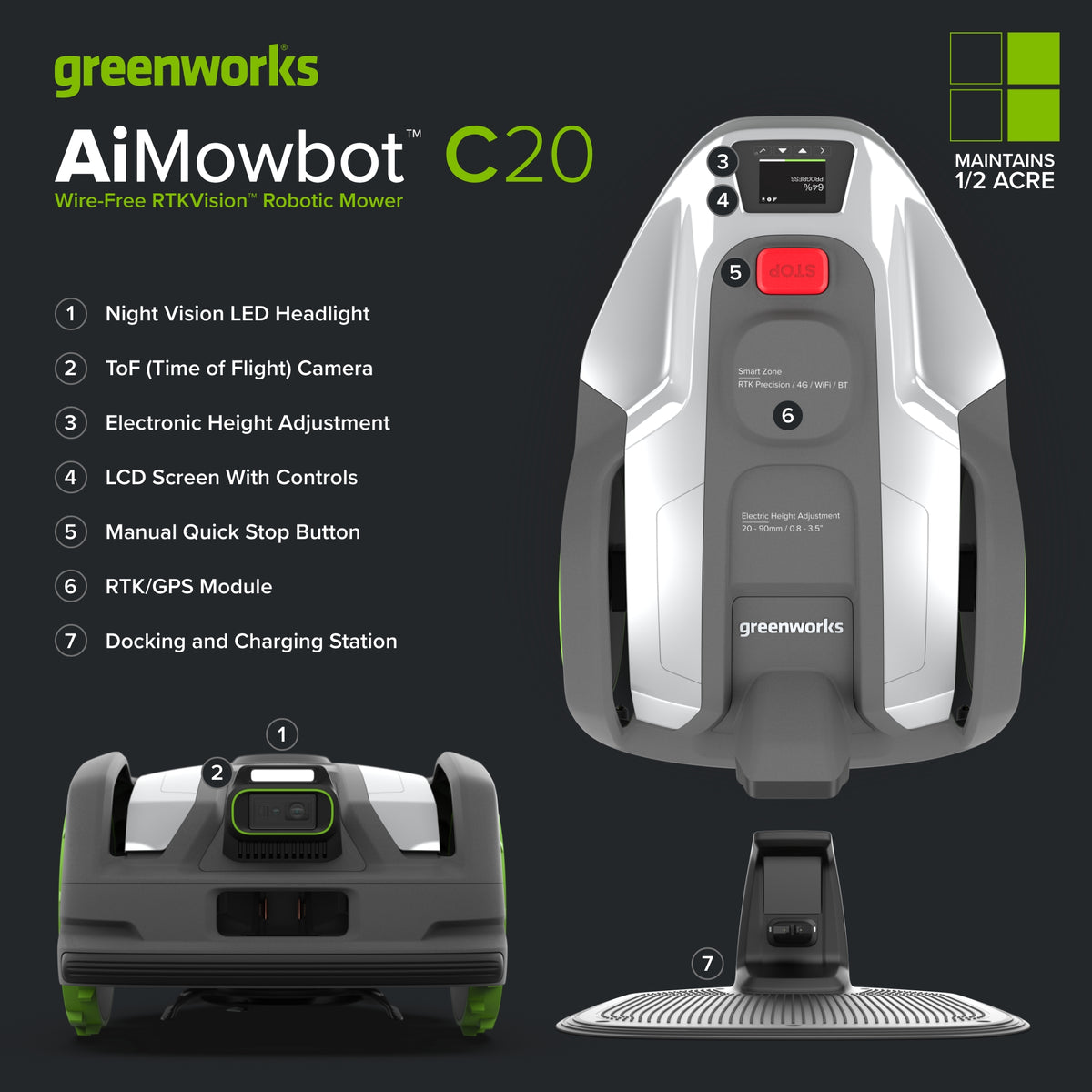
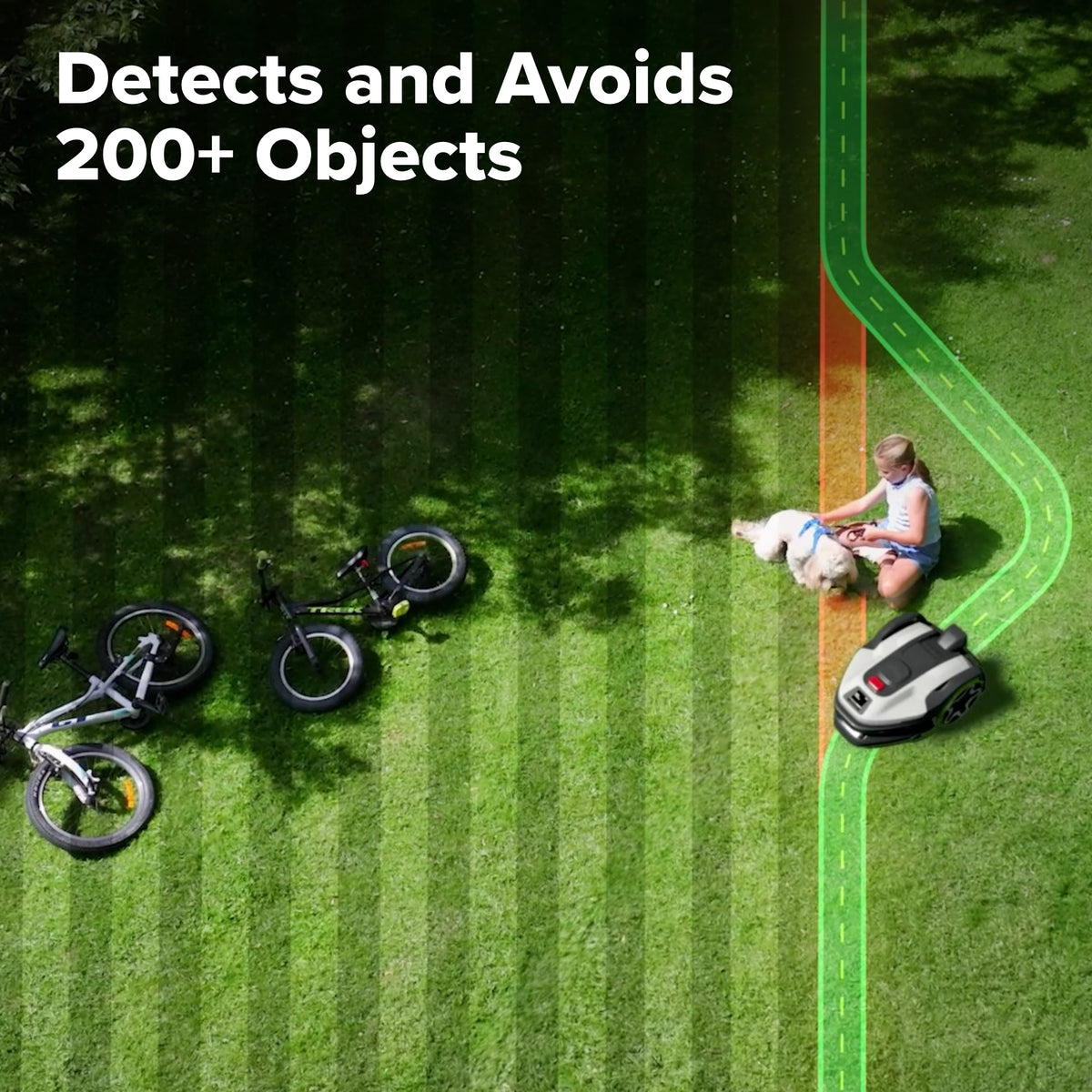
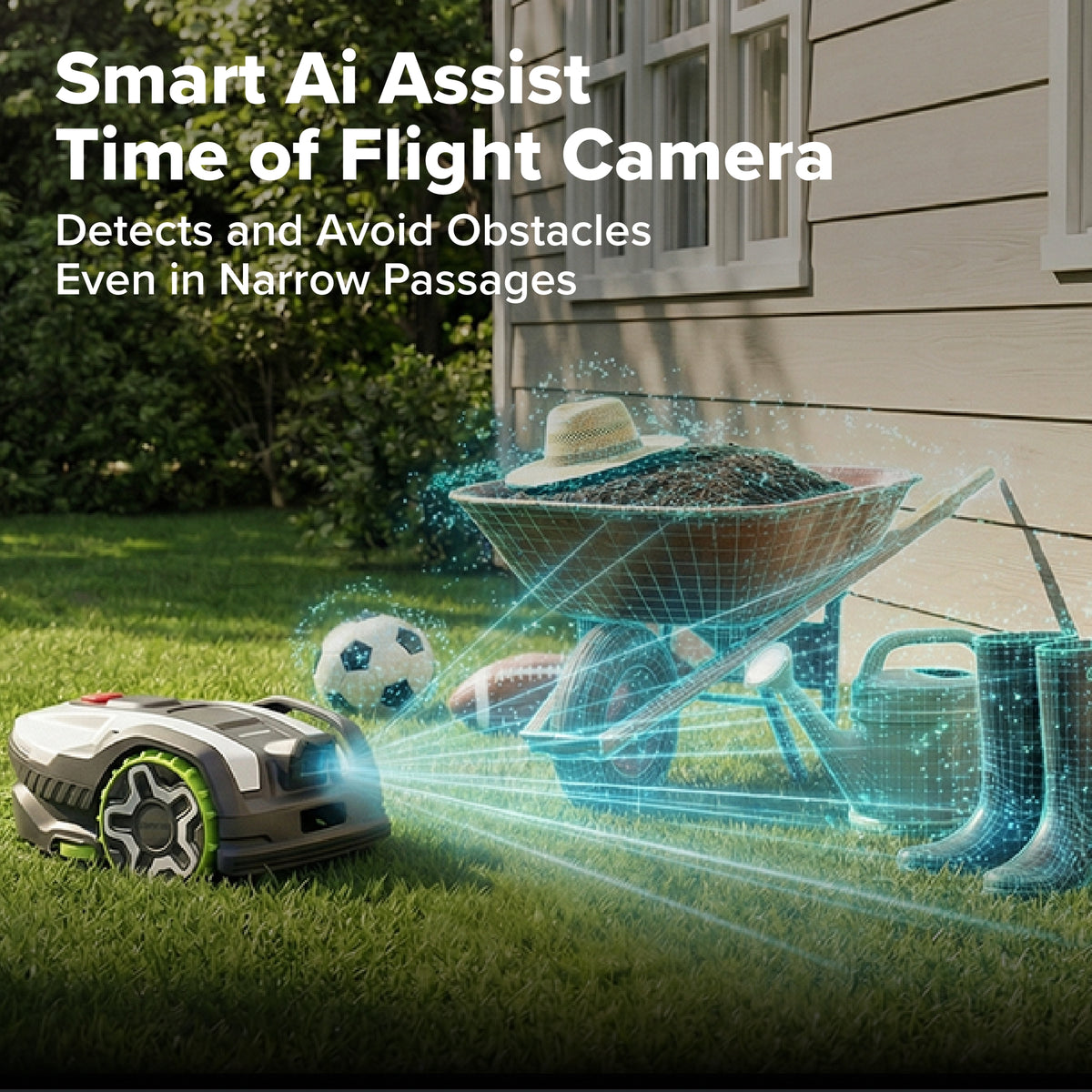
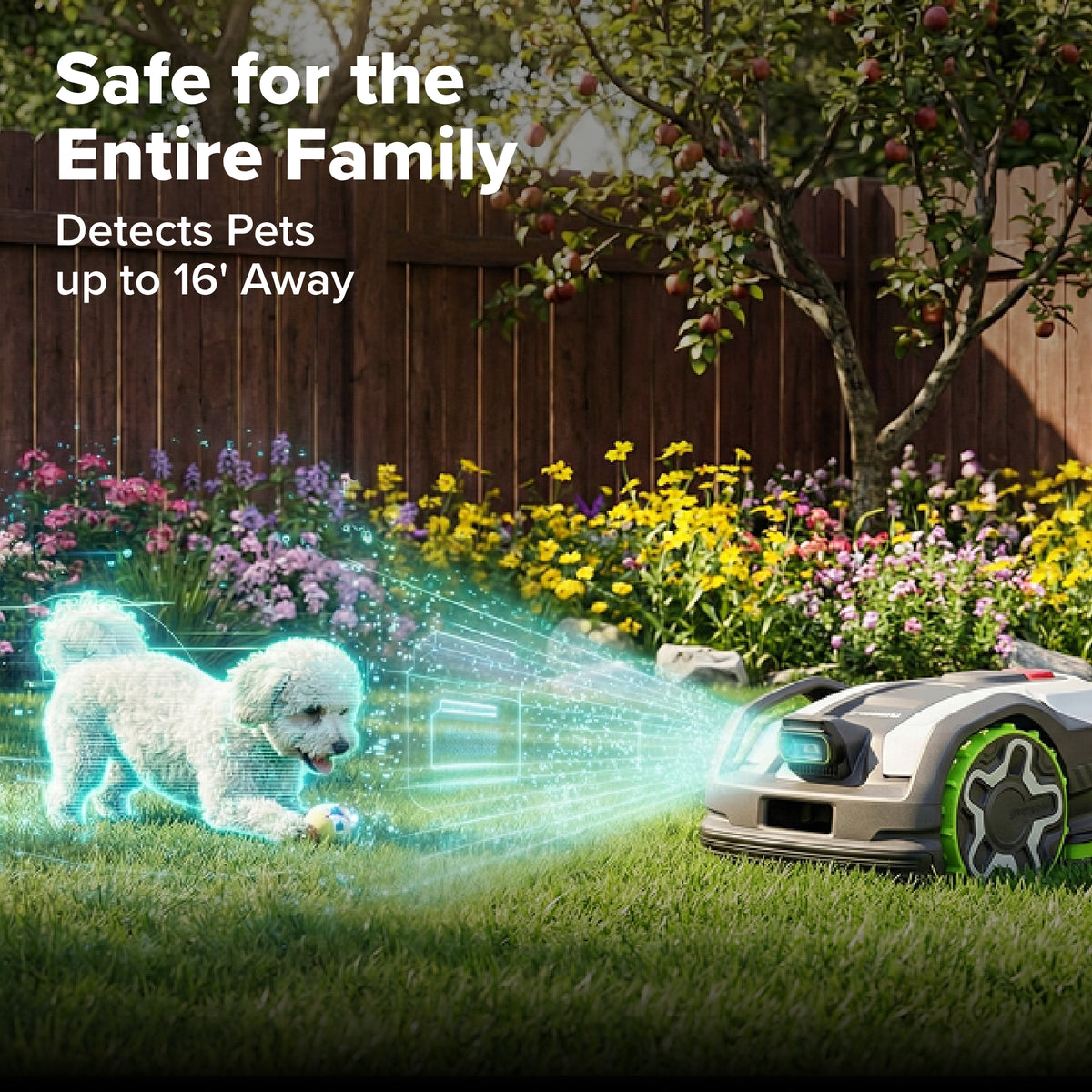
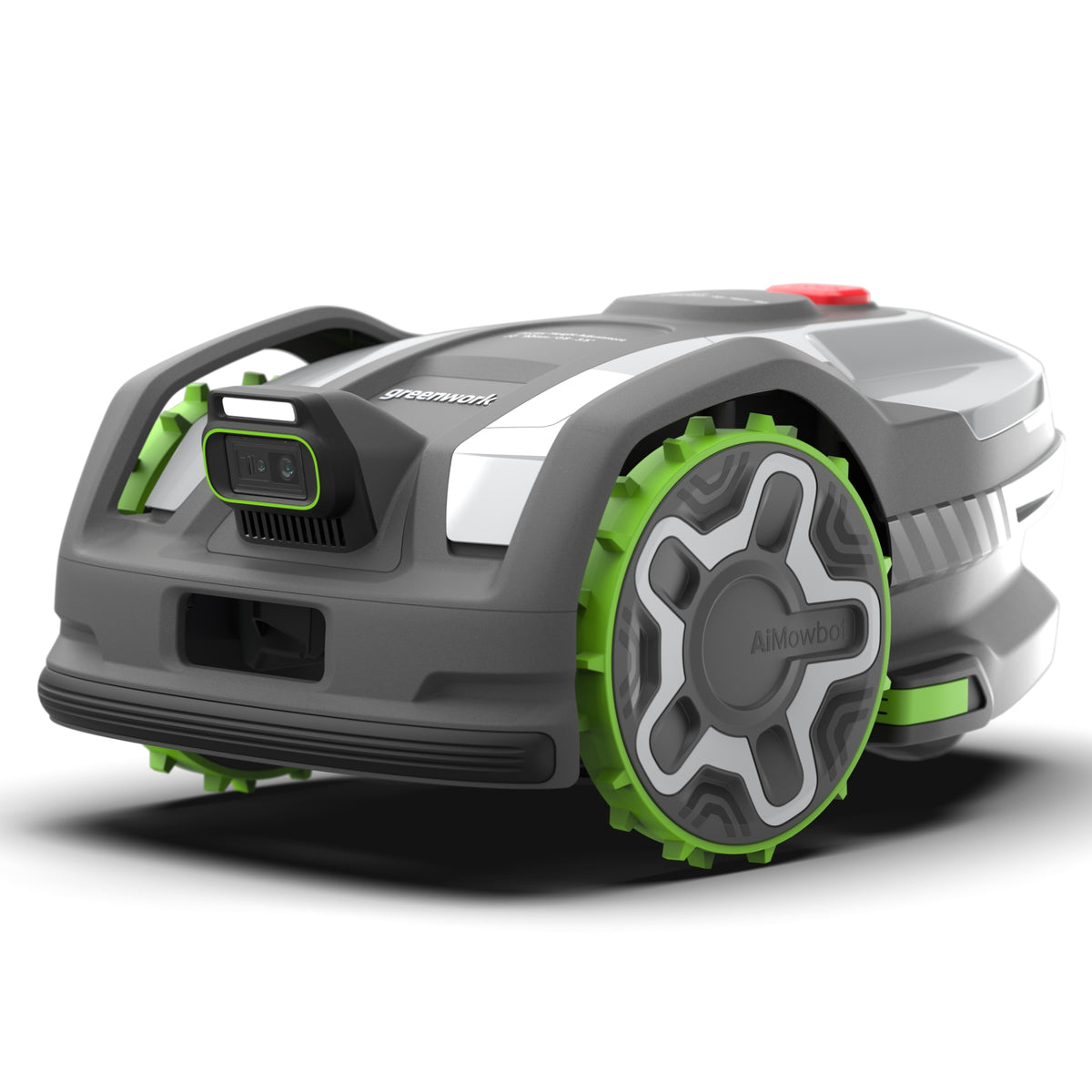
  • AI Object Detection: Smart cameras and night‑vision sensors detect and avoid over 200 obstacles
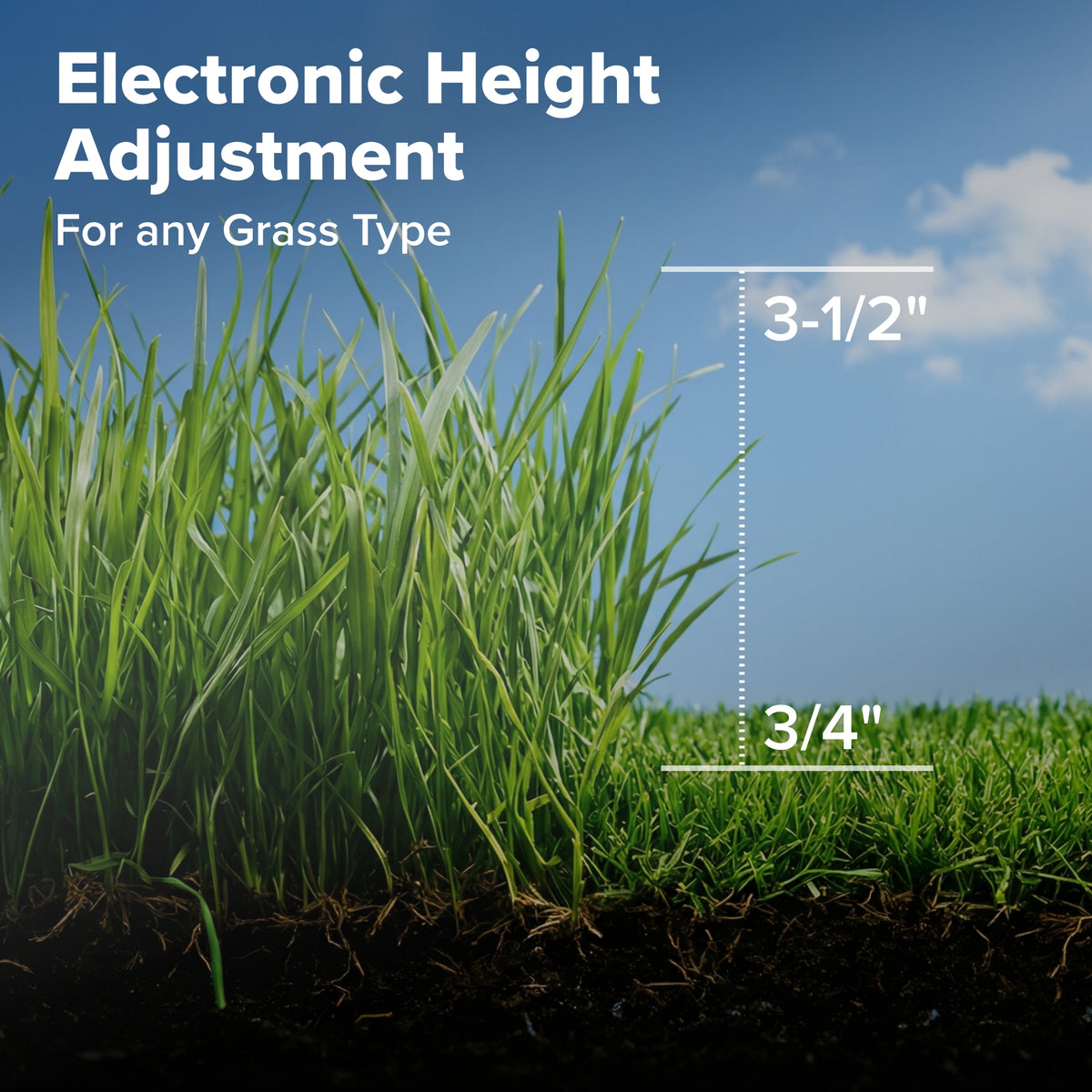
  • Ultimate Mowing Versatility: Adjust cutting height electronically between 0.75 and 3.5 inches
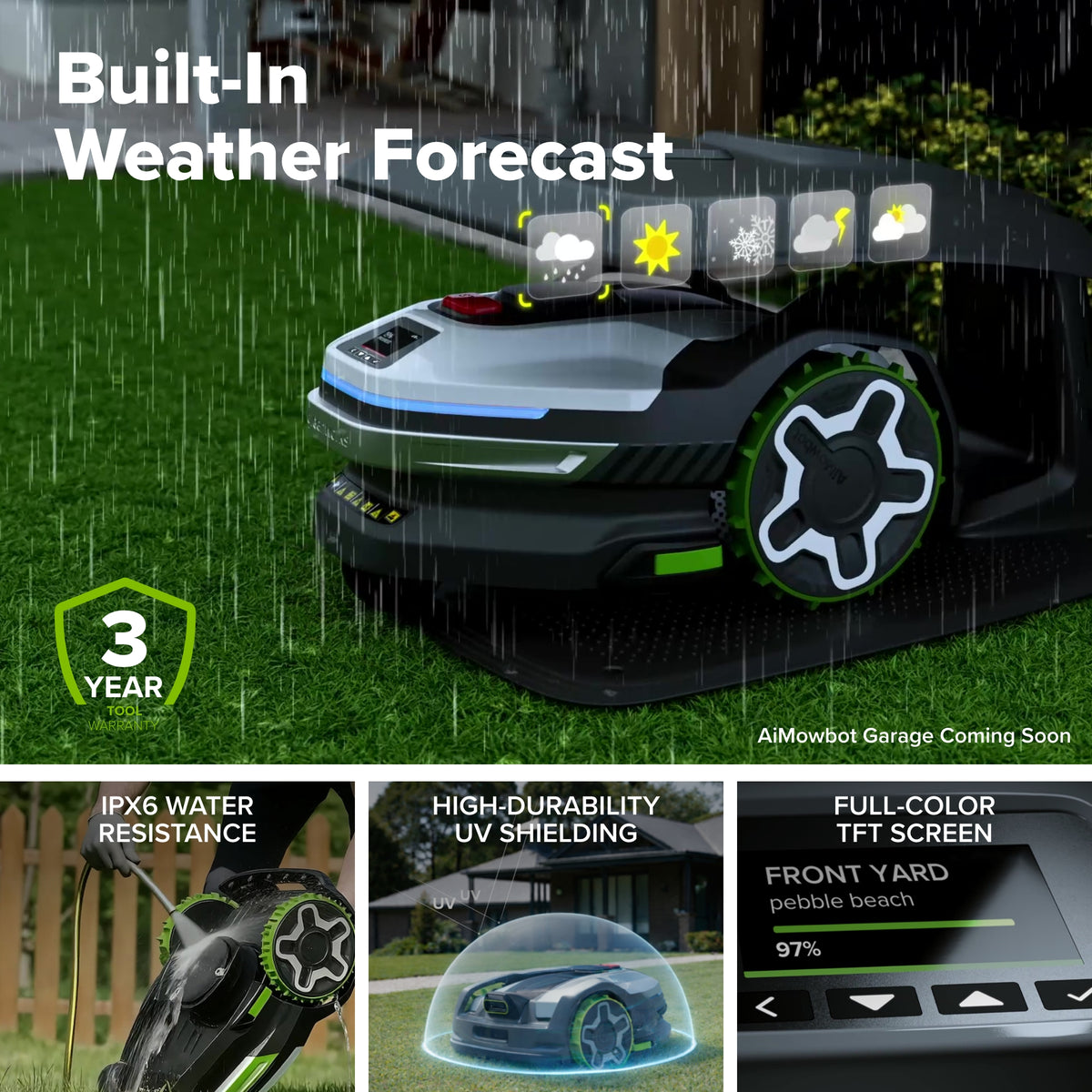
  • Cut in Any Conditions: Oversized wheels and LED headlights enable mowing on 45% grade slopes with IPX6 water resistance
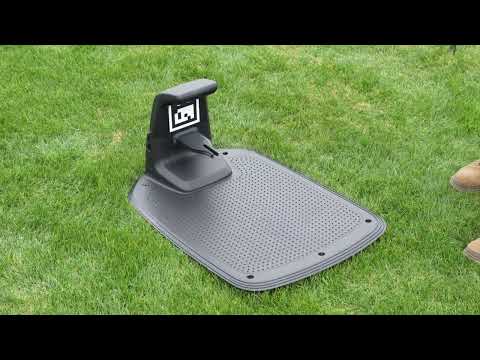
  • Self‑Charging Dock: Automated return and QR‑guided charging keep the mower powered automatically
Get it by: Updating delivery times and availability...

Change Best Buy Store

×

Availability based on local stock and may change. Order before 4pm eligible for same day where available.

More near your

Showing in-stock stores within 100 miles

Coming soon

AiMowbot Wire-Free RTKVision Robotic Mower C20
Key Features Get answers to all the questions you might have in your mind for this product
AiMowbot Wire-Free RTKVision Robotic Mower C20
  • Mow Larger Yards: Continuously maintains small or medium-sized yards up to 1/2 acre with 1‑inch navigation accuracy and quiet 54dB operation.
  • Easy Guided Setup: Configure mowing zones, pathways, no‑go areas, and settings through your smartphone.
  • AI Object Detection: Smart cameras and night‑vision sensors detect and avoid over 200 obstacles.
  • Ultimate Mowing Versatility: Adjust cutting height electronically between 0.75 and 3.5 inches.
  • Cut in Any Conditions: Oversized wheels and LED headlights enable mowing on 45% grade slopes with IPX6 water resistance.
  • Self‑Charging Dock: Automated return and QR‑guided charging keep the mower powered automatically.
Specifications & Guides Find specifications as well as additional supporting information about our product
Area Capacity 0.5 Acre
Max Cutting Height 2.4"
Min Cutting Height 0.8"
Max Cutting Width 8.7"
Waterproof Rating IPX6
Cellular 4G

Product Specifications

Area Capacity 0.5 Acre
Wheel Configuration 3-wheel design
Navigation Technology Wire-Free RTK Vision
Control Method Smart APP Control
Connectivity Supports Wi-Fi and Bluetooth
Mower IP Rating IPX6 Waterproof Rating
Max Angle 45% (24°) Climb Angle
Cutting Height 3/4-in to 3 1/2-in (Auto)
Cutting Width 8 inches
Mowing speed 0.9 mph
Tool Warranty 3-Year
Additional Details More information about this product

What's Included Everything that comes with this product
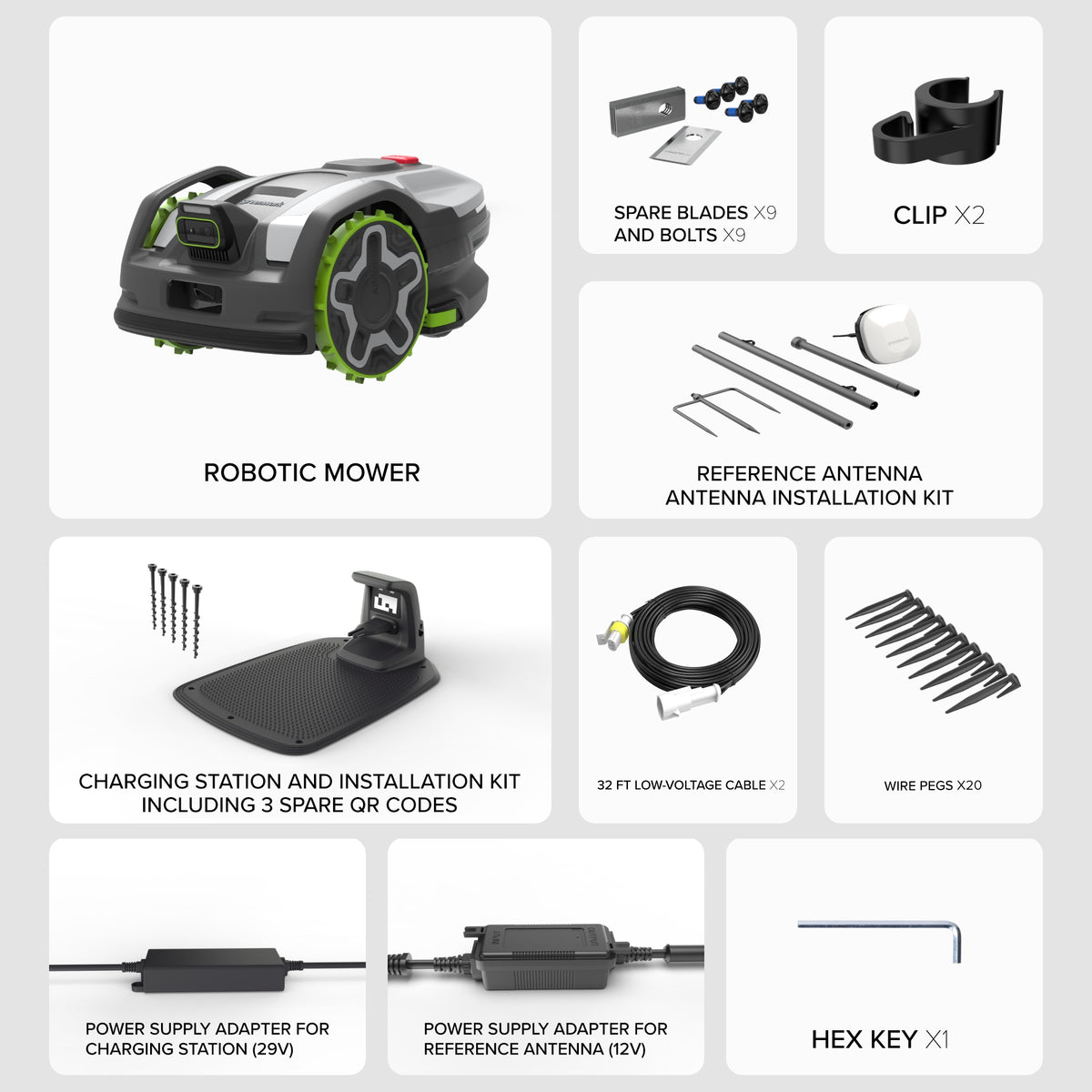
  • (1)AiMowbot C20
  • (1)Reference antenna kit
  • (1)Charging station and the installation kit
  • (1)29V PSU (for charging station)
  • (1)12V PSU (for reference antenna)
  • (2)10m (32 ft) Low-voltage cable
  • (20)Wire pegs
  • (9)Spare blades
  • (9)Spare bolts
  • (2)Clip
Help & FAQ Answers to the most frequently asked questions

How to find the ideal location to install the RTK antenna? faq-icon

When choosing a location, try to ensure the following: 1. If possible, select an open area that does not block the view in any direction. 2. Make sure that the sky directly above the antenna is not obscured by trees or roofs. 3. If the above guidelines do not work, please consider using an antenna extension kit to install the antenna on the roof (for details,See official website). The antenna shall have a clear sky view with at least 120 ° Sky unobstructed. If you can't find a suitable location on the ground, please consider using an antenna Expansion Kit (sold separately) to install the antenna on the roof or wall to get a better satellite signal. You can also go to Settings --- Applications --- Help and Feedback --- Installation Guide for more detailed information on how to find the ideal location.

How to find the ideal location to install the charging station? faq-icon

\"When choosing a location, try to ensure the following: 1. If possible, please select a flat area and ensure that the height drop of the front and rear ends of the charging station does not exceed 5cm. 2. Ensure that the charging station is installed in an open space with no obstacles within a radius of 2 m. 3. Ensure that about 1 meter in front of the charging station is an open area,Not covered by trees or roofs. 4. It is recommended that the installation location of the charging station has wifi signal coverage to ensure the normal operation of OTA. You can also go to Settings --- Applications --- Help and Feedback --- Installation Guide for more detailed information on how to find the ideal location.\"

Why does my mower show IDLE on the screen? faq-icon

The IDLE state on the mower indicates that the mower is not currently in mowing mode. Once the mower starts mowing, the IDLE state will automatically disappear.

How do I reset the password for my mobile APP account? faq-icon

1. If you remember your old password: Go to Settings> Apps> Accounts and Security> Change Password to update your password. If you forgot your old password: Sign out of your account, and when you sign in again, click \"Forget my password\" to reset your password.

How to set a mowing schedule for a specific area? faq-icon

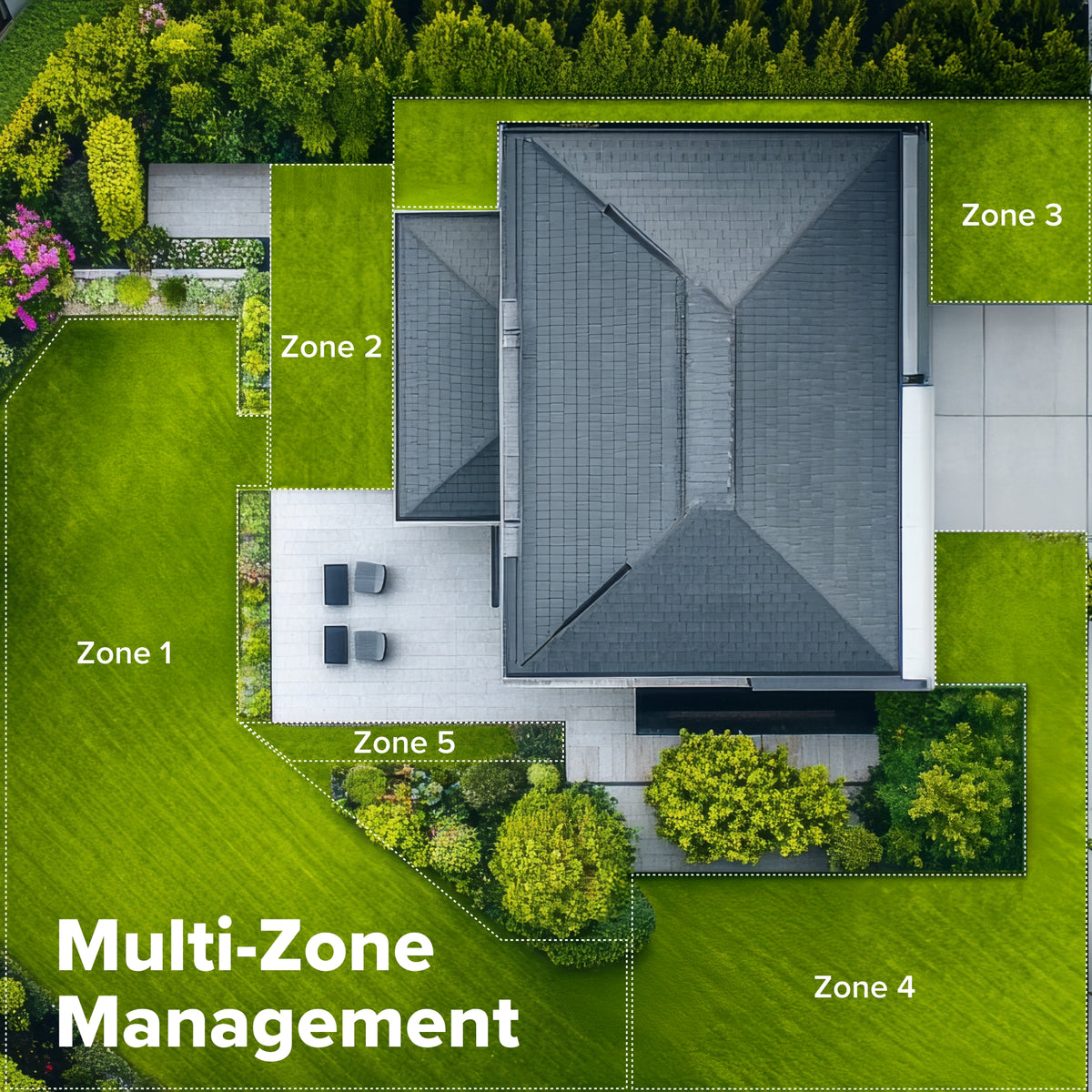
After creating a map of multiple areas, go to the schedule mowing, enable the mowing schedule, and then select a specific area when setting the schedule.

What should I do if my mower is stolen? faq-icon

To operate the mower, including creating maps and performing other tasks, you must log in to your mower  account through the app. As long as the lawnmower is linked to your account, no one else can use it. Important Note: 1. Keep your account details and password confidential. 2.Do not unbind the mower from the app. If you have activated the 4G service and anti-theft function, the lawn mower will sound an alarm when it moves out of the designated area. You can track their location in the app and contact the police for help.

How to turn on/off mower? faq-icon

To turn off the power of the mower, first remove it from the charging station, and then press and hold the OK button until it turns off. To turn on the power, return the mower to the charging station, or short press the OK button. Please note that the mower cannot be turned off when it is on the charging station.

How do I return the mower to the charging station? faq-icon

If a map is created and the mower is in a good location, you can click Recharge in the app, or press the [Recharge] and [OK] buttons on the mower to send the mower back to the charging station.

Can I enter the PIN code on the app? faq-icon

To comply with safety regulations, the app will only prompt for a PIN code if: A PIN has already been configured on the mower. The Monitoring Function is currently enabled. What should I do if I forget my PIN? You can reset your PIN through the app by navigating to: Settings > Lawn Mower > Security Features > Device Lock > Reset PIN code.

Can I move the charging station after it has been installed? faq-icon

Yes. You can relocate the charging station at any time. However, to ensure the mower can dock correctly, you must update its position within the app. How to update the location: Delete: Go to Map Management in the app and delete the current charging station icon. Relocate: Physically move the charging station to its new location. Re-register: Use the app to mark and save the new charging station position on your map. Pro Tip: Ensure the new location is on level ground and has a clear path for the mower to approach and dock without interference.

Can the mower operate at night? faq-icon

Yes, night mowing is supported. However, please be aware that reduced lighting conditions may affect the mower's performance in the following ways:Obstacle Avoidance: The vision system may be less sensitive in low light, potentially reducing its ability to detect and avoid small objects. Docking & Charging: The mower may experience occasional difficulty identifying the charging station (refilling) quickly due to the lack of ambient light.

Can I replace the mower's battery? faq-icon

Yes. You can replace the battery, but to ensure safety and maintain your warranty, please follow these guidelines: Follow the Manual: Battery replacement must be performed in strict accordance with the procedures outlined in your User Manual. Use Genuine Parts: Only purchase officially certified batteries from authorized retailers or regular channels. Update the App: After installation, you must reset the battery charging cycles within the app to ensure accurate power monitoring. Need Assistance? If you are uncomfortable performing the replacement yourself or experience any battery issues, please contact your local dealer or seller for professional support.

How do I create a map? faq-icon

After unboxing your mower, follow these steps to set up your virtual boundary and map: Phase 1: Preparation Hardware Setup: Install the charging station and antenna in a suitable location. Dock the mower to power it on. App Pairing: Download the mobile app and pair it with your mower. Station Calibration: With the mower docked, follow the app prompts to complete the Station Fixation/Calibration process. Phase 2: Mapping Steps Initiate: Tap Map Management > Create Map on the app home screen. Mowing Areas: Start by defining your mowing areas. A valid map must contain at least one mowing area and one charging station. Forbidden Zones: If there are areas to avoid (like flower beds), create \"Forbidden Zones\" within your mowing area. You can add multiple zones per area. Paths: If your charging station sits outside the mowing area, you must create a path connecting the two. Multi-Area Mapping: You can create multiple mowing areas, but ensure each one has a clear path leading back to the charging station. Important Mapping Rules Capacity: The total size of all mowing areas must not exceed your specific model's maximum capacity. Precision: Keep the mower at least 10cm (4 inches) away from the actual lawn boundary during setup. Connectivity: When remotely controlling the mower to build the map, stay within 6 meters (20 feet) of the device. Correction: Made a mistake? Long-press the Retreat/Back key to backtrack your path.

How to connect mower to 4G network? faq-icon

The 4G connection process is integrated into the initial setup of your device. Activation: During the initial activation of your mower, the final step will guide you through activating the 4G network. Once completed, your mower will remain connected automatically. Model Compatibility: Please note that the R5 Vision Series does not support 4G connectivity. All other models are 4G-enabled. Connectivity Troubleshooting: If your mower is not connecting to 4G, it may be due to one of the following: Network Coverage: There is no 4G signal available in your local area. Subscription Status: Your 4G data plan has expired and needs to be renewed.

How do I update the mower’s firmware? faq-icon

How to Update: Automatic Notifications: When a new version is available, a pop-up notification will appear in the app once your mower is powered on and connected to the network. Follow the on-screen prompts to begin. Manual Check: You can manually check for updates at any time by navigating to: Settings > Lawn Mower > My Device > Firmware Version. Pre-Update Checklist: Before starting the 10–15 minute update process, please ensure: Location: The mower is securely docked in the charging station. Connectivity: The network signal (4G or Wi-Fi) is strong. Battery: The battery level is above 25%. Schedule: No mowing tasks are scheduled for the next hour. Silent Upgrades: If you sign the Silent Upgrade Agreement in the app, the mower will automatically download and install updates during non-working hours (at night) to avoid interrupting your schedule. Important: Do not power off the mower or close the app during the upgrade. You will receive a notification once the process is successfully completed. Troubleshooting: If you meet all the conditions above but the update still fails, please contact our after-sales service team for assistance. Note: Some new features may require both the App and the mower firmware to be updated to specific versions. Please refer to our latest Release Notes for details.
About Greenworks See how Greenworks is always making life better
20+ Years of Battery-First Innovation.

We’ve been pioneers of battery-powered outdoor tools since 2002, designing smarter tools with battery technology at their core to get work done faster.

#1 Battery Brand for Commercial Landscapers.

Trusted by professionals worldwide for performance, durability, and reliability, our tools are built to handle real-world all-day work.

Power That Replaces Gas Without the Hassle.

Sustainable technology delivers more power, longer runtimes, and zero gas, fumes, or engine maintenance, saving you time, money, and trouble.

One Battery. Endless Possibilities.

Choose the right voltage platform for your needs and share batteries across hundreds of tools in the yard, garage, jobsite, and beyond.

Smartly Designed. Built to Last.

Designed and engineered in-house for cleaner, quieter, smarter performance, with purpose-driven features that fit seamlessly into everyday life.

Proven Across 500+ Tools and Applications.

From maintaining your backyard to powering large jobsites, our battery expertise scales across 500+ professional and consumer tools built for real-world use.

Key Features
  • Mow Larger Yards: Continuously maintains small or medium-sized yards up to 1/2 acre with 1‑inch navigation accuracy and quiet 54dB operation.
  • Easy Guided Setup: Configure mowing zones, pathways, no‑go areas, and settings through your smartphone.
  • AI Object Detection: Smart cameras and night‑vision sensors detect and avoid over 200 obstacles.
  • Ultimate Mowing Versatility: Adjust cutting height electronically between 0.75 and 3.5 inches.
  • Cut in Any Conditions: Oversized wheels and LED headlights enable mowing on 45% grade slopes with IPX6 water resistance.
  • Self‑Charging Dock: Automated return and QR‑guided charging keep the mower powered automatically.
AiMowbot Wire-Free RTKVision Robotic Mower C20
Specifications & Guides
Area Capacity 0.5 Acre
Max Cutting Height 2.4"
Min Cutting Height 0.8"
Max Cutting Width 8.7"
Waterproof Rating IPX6
Cellular 4G

Product Specifications

Area Capacity 0.5 Acre
Wheel Configuration 3-wheel design
Navigation Technology Wire-Free RTK Vision
Control Method Smart APP Control
Connectivity Supports Wi-Fi and Bluetooth
Mower IP Rating IPX6 Waterproof Rating
Max Angle 45% (24°) Climb Angle
Cutting Height 3/4-in to 3 1/2-in (Auto)
Cutting Width 8 inches
Mowing speed 0.9 mph
Tool Warranty 3-Year

Owner's Manual

AiMowbot Wire-Free RTKVision Robotic Mower C20
Additional Details

What's Included
  • (1)AiMowbot C20
  • (1)Reference antenna kit
  • (1)Charging station and the installation kit
  • (1)29V PSU (for charging station)
  • (1)12V PSU (for reference antenna)
  • (2)10m (32 ft) Low-voltage cable
  • (20)Wire pegs
  • (9)Spare blades
  • (9)Spare bolts
  • (2)Clip
Help & FAQ

How to find the ideal location to install the RTK antenna? faq-icon

When choosing a location, try to ensure the following: 1. If possible, select an open area that does not block the view in any direction. 2. Make sure that the sky directly above the antenna is not obscured by trees or roofs. 3. If the above guidelines do not work, please consider using an antenna extension kit to install the antenna on the roof (for details,See official website). The antenna shall have a clear sky view with at least 120 ° Sky unobstructed. If you can't find a suitable location on the ground, please consider using an antenna Expansion Kit (sold separately) to install the antenna on the roof or wall to get a better satellite signal. You can also go to Settings --- Applications --- Help and Feedback --- Installation Guide for more detailed information on how to find the ideal location.

How to find the ideal location to install the charging station? faq-icon

\"When choosing a location, try to ensure the following: 1. If possible, please select a flat area and ensure that the height drop of the front and rear ends of the charging station does not exceed 5cm. 2. Ensure that the charging station is installed in an open space with no obstacles within a radius of 2 m. 3. Ensure that about 1 meter in front of the charging station is an open area,Not covered by trees or roofs. 4. It is recommended that the installation location of the charging station has wifi signal coverage to ensure the normal operation of OTA. You can also go to Settings --- Applications --- Help and Feedback --- Installation Guide for more detailed information on how to find the ideal location.\"

Why does my mower show IDLE on the screen? faq-icon

The IDLE state on the mower indicates that the mower is not currently in mowing mode. Once the mower starts mowing, the IDLE state will automatically disappear.

How do I reset the password for my mobile APP account? faq-icon

1. If you remember your old password: Go to Settings> Apps> Accounts and Security> Change Password to update your password. If you forgot your old password: Sign out of your account, and when you sign in again, click \"Forget my password\" to reset your password.

How to set a mowing schedule for a specific area? faq-icon

After creating a map of multiple areas, go to the schedule mowing, enable the mowing schedule, and then select a specific area when setting the schedule.

What should I do if my mower is stolen? faq-icon

To operate the mower, including creating maps and performing other tasks, you must log in to your mower  account through the app. As long as the lawnmower is linked to your account, no one else can use it. Important Note: 1. Keep your account details and password confidential. 2.Do not unbind the mower from the app. If you have activated the 4G service and anti-theft function, the lawn mower will sound an alarm when it moves out of the designated area. You can track their location in the app and contact the police for help.

How to turn on/off mower? faq-icon

To turn off the power of the mower, first remove it from the charging station, and then press and hold the OK button until it turns off. To turn on the power, return the mower to the charging station, or short press the OK button. Please note that the mower cannot be turned off when it is on the charging station.

How do I return the mower to the charging station? faq-icon

If a map is created and the mower is in a good location, you can click Recharge in the app, or press the [Recharge] and [OK] buttons on the mower to send the mower back to the charging station.

Can I enter the PIN code on the app? faq-icon

To comply with safety regulations, the app will only prompt for a PIN code if: A PIN has already been configured on the mower. The Monitoring Function is currently enabled. What should I do if I forget my PIN? You can reset your PIN through the app by navigating to: Settings > Lawn Mower > Security Features > Device Lock > Reset PIN code.

Can I move the charging station after it has been installed? faq-icon

Yes. You can relocate the charging station at any time. However, to ensure the mower can dock correctly, you must update its position within the app. How to update the location: Delete: Go to Map Management in the app and delete the current charging station icon. Relocate: Physically move the charging station to its new location. Re-register: Use the app to mark and save the new charging station position on your map. Pro Tip: Ensure the new location is on level ground and has a clear path for the mower to approach and dock without interference.

Can the mower operate at night? faq-icon

Yes, night mowing is supported. However, please be aware that reduced lighting conditions may affect the mower's performance in the following ways:Obstacle Avoidance: The vision system may be less sensitive in low light, potentially reducing its ability to detect and avoid small objects. Docking & Charging: The mower may experience occasional difficulty identifying the charging station (refilling) quickly due to the lack of ambient light.

Can I replace the mower's battery? faq-icon

Yes. You can replace the battery, but to ensure safety and maintain your warranty, please follow these guidelines: Follow the Manual: Battery replacement must be performed in strict accordance with the procedures outlined in your User Manual. Use Genuine Parts: Only purchase officially certified batteries from authorized retailers or regular channels. Update the App: After installation, you must reset the battery charging cycles within the app to ensure accurate power monitoring. Need Assistance? If you are uncomfortable performing the replacement yourself or experience any battery issues, please contact your local dealer or seller for professional support.

How do I create a map? faq-icon

After unboxing your mower, follow these steps to set up your virtual boundary and map: Phase 1: Preparation Hardware Setup: Install the charging station and antenna in a suitable location. Dock the mower to power it on. App Pairing: Download the mobile app and pair it with your mower. Station Calibration: With the mower docked, follow the app prompts to complete the Station Fixation/Calibration process. Phase 2: Mapping Steps Initiate: Tap Map Management > Create Map on the app home screen. Mowing Areas: Start by defining your mowing areas. A valid map must contain at least one mowing area and one charging station. Forbidden Zones: If there are areas to avoid (like flower beds), create \"Forbidden Zones\" within your mowing area. You can add multiple zones per area. Paths: If your charging station sits outside the mowing area, you must create a path connecting the two. Multi-Area Mapping: You can create multiple mowing areas, but ensure each one has a clear path leading back to the charging station. Important Mapping Rules Capacity: The total size of all mowing areas must not exceed your specific model's maximum capacity. Precision: Keep the mower at least 10cm (4 inches) away from the actual lawn boundary during setup. Connectivity: When remotely controlling the mower to build the map, stay within 6 meters (20 feet) of the device. Correction: Made a mistake? Long-press the Retreat/Back key to backtrack your path.

How to connect mower to 4G network? faq-icon

The 4G connection process is integrated into the initial setup of your device. Activation: During the initial activation of your mower, the final step will guide you through activating the 4G network. Once completed, your mower will remain connected automatically. Model Compatibility: Please note that the R5 Vision Series does not support 4G connectivity. All other models are 4G-enabled. Connectivity Troubleshooting: If your mower is not connecting to 4G, it may be due to one of the following: Network Coverage: There is no 4G signal available in your local area. Subscription Status: Your 4G data plan has expired and needs to be renewed.

How do I update the mower’s firmware? faq-icon

How to Update: Automatic Notifications: When a new version is available, a pop-up notification will appear in the app once your mower is powered on and connected to the network. Follow the on-screen prompts to begin. Manual Check: You can manually check for updates at any time by navigating to: Settings > Lawn Mower > My Device > Firmware Version. Pre-Update Checklist: Before starting the 10–15 minute update process, please ensure: Location: The mower is securely docked in the charging station. Connectivity: The network signal (4G or Wi-Fi) is strong. Battery: The battery level is above 25%. Schedule: No mowing tasks are scheduled for the next hour. Silent Upgrades: If you sign the Silent Upgrade Agreement in the app, the mower will automatically download and install updates during non-working hours (at night) to avoid interrupting your schedule. Important: Do not power off the mower or close the app during the upgrade. You will receive a notification once the process is successfully completed. Troubleshooting: If you meet all the conditions above but the update still fails, please contact our after-sales service team for assistance. Note: Some new features may require both the App and the mower firmware to be updated to specific versions. Please refer to our latest Release Notes for details.
About Greenworks
20+ Years of Battery-First Innovation.

We’ve been pioneers of battery-powered outdoor tools since 2002, designing smarter tools with battery technology at their core to get work done faster.

#1 Battery Brand for Commercial Landscapers.

Trusted by professionals worldwide for performance, durability, and reliability, our tools are built to handle real-world all-day work.

Power That Replaces Gas Without the Hassle.

Sustainable technology delivers more power, longer runtimes, and zero gas, fumes, or engine maintenance, saving you time, money, and trouble.

One Battery. Endless Possibilities.

Choose the right voltage platform for your needs and share batteries across hundreds of tools in the yard, garage, jobsite, and beyond.

Smartly Designed. Built to Last.

Designed and engineered in-house for cleaner, quieter, smarter performance, with purpose-driven features that fit seamlessly into everyday life.

Proven Across 500+ Tools and Applications.

From maintaining your backyard to powering large jobsites, our battery expertise scales across 500+ professional and consumer tools built for real-world use.

Explore More

Questions

Order Helper

Ship to Location

Ship to:

Find your order status

What is the email you used to place your order?
A specific order # we emailed to you
Manage my tools
Drawer Title
Similar Products
{"statementLink":"","footerHtml":"","hideMobile":false,"hideTrigger":false,"disableBgProcess":false,"language":"en","position":"left","leadColor":"#036a38","triggerColor":"#036a38","triggerRadius":"50%","triggerPositionX":"left","triggerPositionY":"bottom","triggerIcon":"people","triggerSize":"medium","triggerOffsetX":20,"triggerOffsetY":80,"mobile":{"triggerSize":"small","triggerPositionX":"left","triggerPositionY":"bottom","triggerOffsetX":20,"triggerOffsetY":90,"triggerRadius":"50%"}}
Chat Now!
First Name*:
Last Name*:
Email: optional
Hello, how may I help you?
Disclaimer: Responses are generated by AI and may be inaccurate. Chats may be monitored, recorded, and stored by us and our vendors. By using this service, you agree to our Terms of Service and acknowledge our Privacy Policy.